
CPU Utilization and System Responsiveness: Why They Don’t Always Match
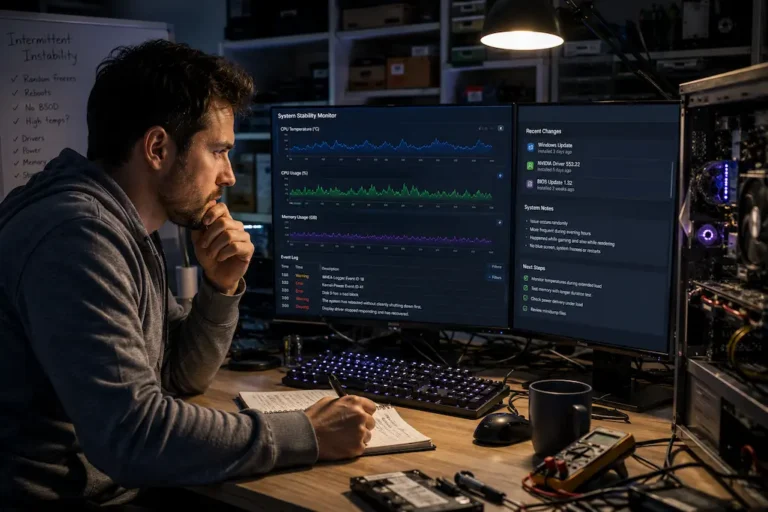
Even with just 20% CPU usage, a computer can feel sluggish when opening programs or switching between browser tabs. Conversely, another computer might reach 95% CPU usage within minutes without any noticeable slowdown. At first glance, these situations seem contradictory. Shouldn’t higher CPU usage imply slower system responsiveness? In reality, CPU usage tells only part of the story.
A system’s responsiveness is determined by more than just processor usage; it depends on the computer’s overall efficiency. System response time is influenced by various factors, including memory availability, storage latency, background processes, thread scheduling, application design, and even user interaction patterns. Many users mistakenly believe the problem lies with the processor itself, but the situation becomes clear when one understands the interplay between these factors.
Understanding the True Meaning of CPU Usage
CPU usage is typically displayed as a percentage, which seems straightforward. However, this figure merely represents the actual time the processor spends executing tasks within a specific timeframe. It does not indicate whether user interactions are smooth, whether the tasks are critical, or whether the processor is waiting for a response from other hardware components.
90% utilization does not always mean the processor is overloaded. A processor might be efficiently rendering 3D scenes, compiling software, or processing video exports—tasks that consume processor resources but do not necessarily compromise overall system stability. Similarly, a program that is constantly waiting for storage, memory, or network operations to complete can feel sluggish, even with processor utilization at just 25%. Moreover, because modern processors feature multiple cores and can execute multiple threads simultaneously, utilization is distributed across the available resources. Moderate overall utilization can mask the actual bottleneck, as a heavily loaded core may impact a specific application even while other cores remain largely idle.
CPU Usage Is Activity, Not Performance
It is a common misconception that performance depends directly on CPU utilization; in reality, it measures activity.
Since factors such as processor architecture, clock speed, cache efficiency, and workload characteristics determine the actual amount of work performed within a given timeframe, two processors might both report 70% utilization yet deliver vastly different performance.
Engineering Insight
CPU utilization answers the question, “How busy is the processor?” It does not answer, “How quickly is my computer responding?”
What Makes a Computer Feel Responsive?
People rarely judge a computer by benchmark scores during everyday use. Instead, they notice how quickly windows open, whether scrolling remains smooth, how fast files appear after clicking them, and whether applications react immediately to input. These experiences collectively define system responsiveness.
Responsiveness is closely tied to latency rather than raw processing power. Latency refers to the delay between a user’s action and the system’s response. Even small delays become noticeable when repeated hundreds of times throughout the day.
Imagine clicking an application icon. The processor may only spend a fraction of a second executing instructions, but before that happens the operating system may need to locate files on storage, allocate memory, verify permissions, load supporting libraries, and initialize background services. Any delay in these stages affects how responsive the computer feels despite relatively low CPU usage.
Components That Influence Responsiveness
Several hardware and software components contribute to perceived system speed:
- Storage performance, especially random read latency.
- Available system memory.
- Application optimization.
- Operating system scheduling.
- Background services competing for resources.
- Graphics processing during interface rendering.
- Network delays for cloud-based applications.
Because these components work together, improving processor performance alone does not always produce a noticeably faster computer.
Why High CPU Usage Doesn’t Always Mean a Slow Computer
High processor utilization often occurs during workloads specifically designed to use every available computing resource. Video rendering, software compilation, scientific simulations, data compression, and many modern games intentionally keep processors busy because completing work faster is their primary objective.
In these situations, the operating system continues allocating processor time efficiently between background tasks and user interactions. Modern schedulers are remarkably effective at ensuring interactive applications receive sufficient processing time even while demanding background workloads are running.
For example, a professional video editor exporting a large project may see CPU utilization remain above 95% for several minutes. Despite this, switching between applications or browsing documentation often remains reasonably smooth because the operating system prioritizes interactive tasks.
Workloads That Naturally Maximize CPU Usage
High utilization is expected during tasks such as:
- Video encoding and rendering.
- Software development and code compilation.
- Scientific or engineering simulations.
- Virtual machine workloads.
- Large-scale data processing.
- Modern game engines during complex scenes.
These activities are designed to keep processors busy. High utilization in these cases often indicates efficient resource usage rather than a performance problem.
A Practical Observation
While comparing several desktop workstations during software compilation, I noticed something interesting. One system consistently maintained processor utilization above 90%, yet it remained responsive enough to browse documentation, answer emails, and continue light multitasking. Another machine rarely exceeded 60% utilization but felt noticeably less responsive because its slower storage frequently delayed application launches. It was a useful reminder that processor activity alone rarely tells the whole performance story.
Why Low CPU Usage Can Still Feel Slow
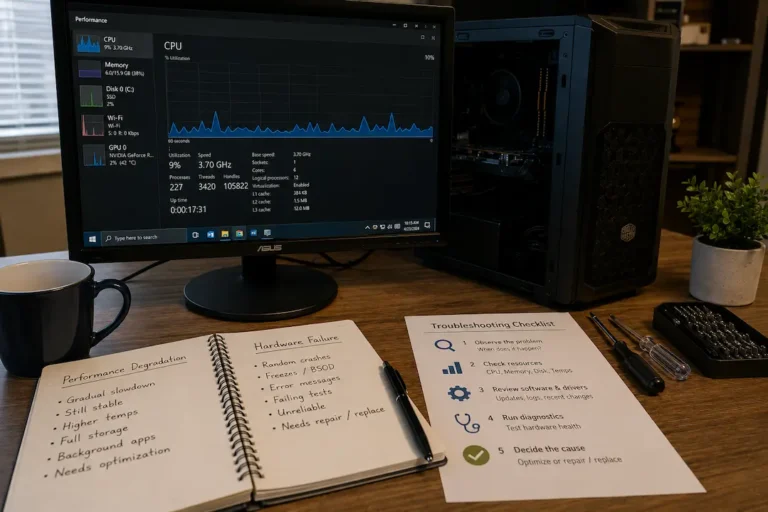
Many performance complaints originate from systems that appear to have plenty of unused processor capacity. Users often open Task Manager, see CPU utilization below 30%, and assume the processor cannot be responsible for the slowdown. While that assumption seems logical, modern computers spend a surprising amount of time waiting rather than computing.
A processor cannot continue executing instructions if the data it needs has not yet arrived from memory or storage. During these waiting periods, CPU utilization may remain relatively low even though the user experiences noticeable delays. This explains why replacing a mechanical hard drive with a solid-state drive often transforms system responsiveness without changing the processor.
Common Reasons for Poor Responsiveness Despite Low CPU Usage
| Possible Bottleneck | Effect on User Experience |
|---|---|
| Slow storage device | Applications open slowly and files take longer to load. |
| Insufficient RAM | Frequent memory swapping causes delays. |
| Background disk activity | System pauses while waiting for storage operations. |
| Network latency | Cloud applications appear unresponsive. |
| Poor software optimization | Delays occur despite available processor capacity. |
In these situations, increasing processor speed alone would produce only modest improvements because the CPU is not the component limiting performance.
How Modern Operating Systems Balance Workloads
Operating systems constantly make scheduling decisions, determining which applications receive processor time and when. These decisions are made thousands of times per second and are crucial for a responsive user experience.
The scheduler divides execution time into small slices rather than allowing a single, resource-intensive application to consume all processor resources. Tasks requiring high responsiveness (such as mouse and keyboard input or window rendering) are typically assigned higher priority, as users would immediately notice any lag. Background processes, on the other hand, can usually tolerate slightly higher latency without degrading the overall experience.
This intelligent scheduling mechanism helps explain how computers remain functional under processor-intensive conditions. Instead of treating every activity equally, the operating system continuously adjusts priorities to ensure that tasks requiring rapid user feedback gain timely access to computing resources.
When a Single CPU Core Becomes a Bottleneck
Sometimes, the internal processes of a single processor core can be masked by overall CPU usage figures. Because many applications cannot distribute their workload evenly across all available cores, one or two cores may run at near-maximum capacity while the others remain lightly loaded. In some cases, the average usage reported by monitoring tools may appear perfectly normal, even when an application has reached its actual performance limits.
This phenomenon is particularly common with older software, programs with few threads, and certain game engines that rely heavily on the main thread. Increasing the number of idle cores has little impact on response time, as application speed depends on the active cores. Therefore, determining the exact location of the bottleneck based solely on overall CPU usage may not be accurate.
Overall Usage vs. Per-Core Activity
| Overall CPU Usage | Individual Core Activity | Likely User Experience |
|---|---|---|
| 25% | One core near 100% | A single application may feel slow while the rest of the system remains responsive. |
| 70% | Evenly distributed across cores | Heavy workload with generally balanced performance. |
| 95% | Most cores heavily utilized | Processor-intensive tasks dominate system resources but may still remain usable. |
Monitoring per-core activity often provides a clearer picture than relying solely on the overall utilization percentage.
Looking Beyond the Processor
When troubleshooting performance problems, focusing exclusively on CPU usage often leads to unnecessary upgrades. A responsive computer depends on every major subsystem working together efficiently. If one component becomes significantly slower than the others, the processor may spend much of its time waiting instead of performing useful work.
For example, a fast processor paired with insufficient memory may frequently pause while inactive data is moved between RAM and storage. Likewise, slow storage can delay application launches even though the processor has plenty of unused capacity. In these cases, replacing the CPU would produce little noticeable improvement because another component remains the limiting factor.
A Balanced Performance Checklist
When a computer feels slow, consider these areas before blaming the processor:
- Check available memory during normal workloads.
- Observe storage activity while launching applications.
- Identify background applications consuming resources.
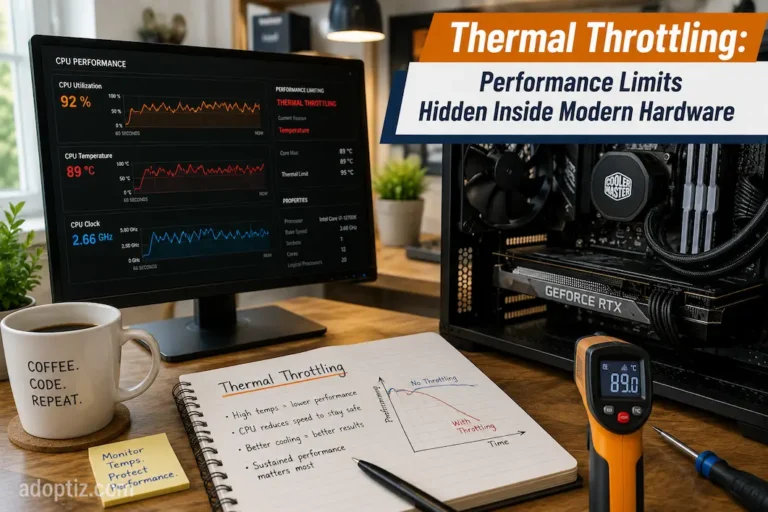
- Monitor temperatures to rule out thermal throttling.
- Compare per-core CPU activity instead of overall utilization alone.
- Ensure drivers and the operating system are up to date.
A balanced system generally delivers a better user experience than one built around a single exceptionally powerful component.
Practical Tip
If CPU utilization remains low while the disk stays constantly active or memory usage approaches its limit, improving storage or increasing RAM is often more beneficial than upgrading the processor.
The Growing Complexity of Responsiveness
In modern computers, system performance no longer depends solely on processor speed. Today’s operating systems simultaneously manage local applications, cloud synchronization, background security scans, browser processes, virtual machines, and hardware acceleration across CPUs and GPUs. Since many of these tasks can run without direct user intervention, overall responsiveness is determined not by a single hardware specification, but by countless subtle scheduling choices.
Moreover, software developers are increasingly adept at distributing tasks across various processing resources. Applications are increasingly delegating functions such as media compression, encryption, graphics rendering, and artificial intelligence to dedicated hardware, rather than relying exclusively on the CPU. Consequently, CPU usage alone is increasingly insufficient to fully reflect a computer’s performance.
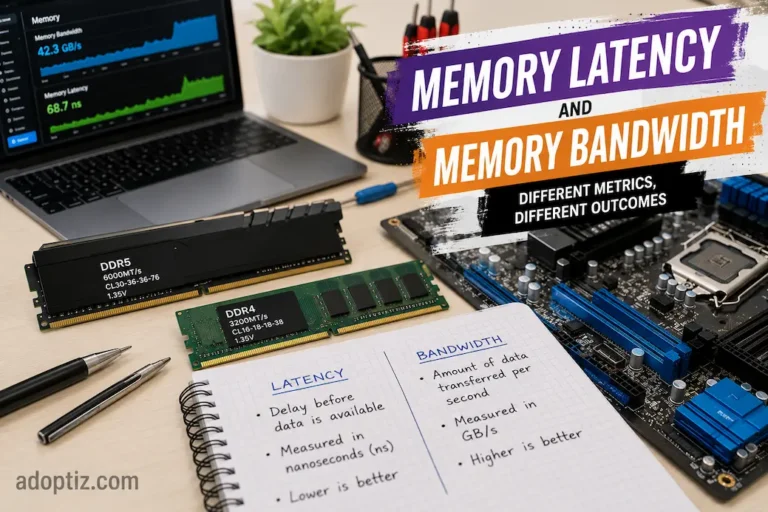
With this broader perspective, it becomes easier to understand why two systems with similar processors can deliver drastically different user experiences. A computer’s responsiveness to user input depends on many factors, including memory speed, storage responsiveness, thermal efficiency, software optimization, and workload characteristics.
Conclusion
CPU usage is one of the most useful performance metrics, yet also one of the most misunderstood. Low CPU usage does not always mean a computer is fast and responsive, and high CPU usage does not always indicate a problem. Storage, memory, scheduling, and software efficiency all constantly interact with the CPU, which is merely one component of a larger system.
Therefore, evaluating performance requires looking beyond a single number. By examining the workload distribution, pinpointing the source of latency, and understanding the function of each hardware component, it becomes easier to accurately identify the cause of performance degradation. The next time your computer becomes unresponsive, consider CPU usage as a starting point for your investigation rather than the definitive answer.
FAQs
1. Why is my CPU usage low even though programs are slow to start?
Memory availability and storage performance generally have a greater impact on application startup times than CPU activity. Even if a system appears sluggish, CPU usage can remain relatively low if the processor is waiting to read data from storage devices or move data into memory.
2. Is 100% CPU usage completely normal?
Yes; tasks such as data compression, software compilation, scientific simulations, and video rendering require full utilization of available CPU resources. For certain workloads, high CPU usage typically indicates that the processor is working efficiently and is not malfunctioning.
3. Why does my computer generally run fast, yet a specific program hangs?
One or two CPU cores are often critical for many applications. Even if overall CPU usage remains relatively low and the rest of the system functions normally, applications can still slow down if these specific cores are fully utilized.
4. Should I upgrade my CPU if my computer is running slowly?
Not necessarily. Day-to-day responsiveness is usually influenced more by storage speed, memory availability, temperature, and program optimization than by processor performance. In general, identifying the actual bottleneck before upgrading hardware yields better results.
5. Which metric should I monitor alongside CPU utilization?
Memory usage, storage activity, CPU usage per core, processor temperature, and disk response time all provide important information. Considering all these metrics gives you a more accurate picture of overall system performance than focusing solely on CPU usage.