Ethernet Auto-Negotiation and Why Link Speeds Sometimes Fall Short
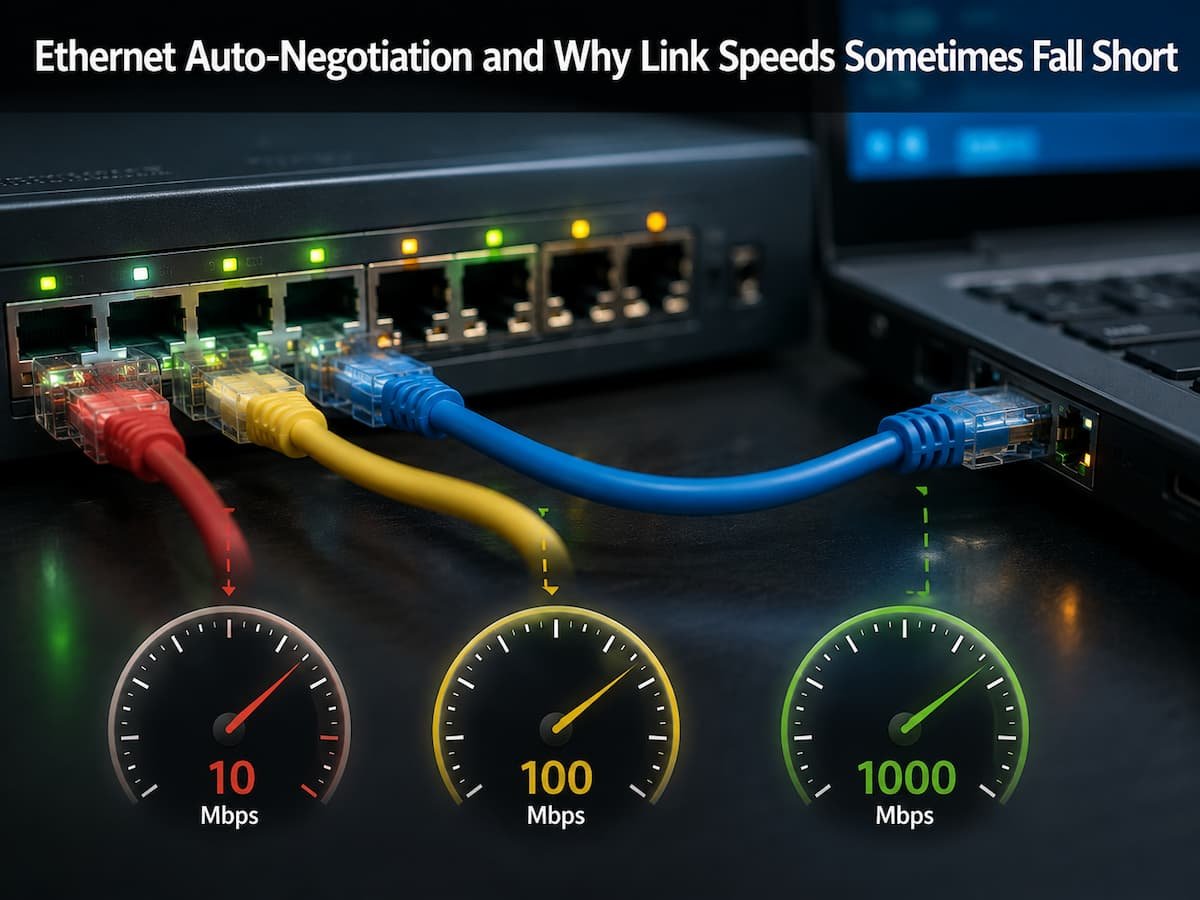
This behavior is due to a procedure called Ethernet auto-negotiation. This technology allows two connected devices (such as a computer and a network switch) to talk with one another and negotiate the best speed and communication settings that they both support. When things are going well, this procedure occurs quietly in the background. When issues occur, the negotiated speed may be below expectations.
Knowing how ethernet auto-negotiation works can assist you to debug slow wired connections, avoid needless hardware changes, and find the underlying reason for performance problems. In this lesson, we’ll look at the link setup process, why speeds occasionally drop, and how to improve Ethernet performance in common networks.
What is Ethernet Auto Negotiation?
Ethernet auto-negotiation is a communication procedure that allows two network devices connected by an Ethernet connection to automatically choose compatible operational parameters. Instead of forcing users to manually set speed and duplex options, new Ethernet equipment shares information and agrees on the highest common capability. Say, you plug a laptop with gigabit Ethernet port onto a network switch that supports the gigabit speed. During the connection phase both devices announce what they can support. If both agree on 1000 Mbps operation, then the link is brought up at the Gigabit speed.
However, if one device supports just 100 Mbps, the connection will generally run at that lesser speed. Auto-negotiation doesn’t add any new capabilities; it just chooses the best choice from both sides. This is significant since in networks there is equipment of different generations. One modern computer may link to an older switch, or a new switch may connect to an older printer or industrial device. Auto-negotiation allows these devices to communicate with each other without requiring manual configuration.
What Information Is Traded in Negotiation?
When an Ethernet link is formed, the devices connected to it share information about their capabilities. This includes:
- Ethernet speeds supported
- Duplex modes
- Features of flow control
- Other link properties supported in hardware
The devices compare capabilities and choose the highest performance mode both sides understand.
| Ethernet Standard | Maximum Speed | Common Usage |
|---|---|---|
| Fast Ethernet | 100 Mbps | Older networks, basic devices |
| Gigabit Ethernet | 1 Gbps | Modern homes and offices |
| 2.5 Gigabit Ethernet | 2.5 Gbps | Newer computers and networking equipment |
| 10 Gigabit Ethernet | 10 Gbps | Servers, advanced networks |
How Ethernet Devices Decide Link Speed
The negotiation process follows a simple principle: both devices look for the highest speed and best settings they have in common. A device cannot force the other side to operate beyond its ability.
For example, a computer with a 10 Gigabit Ethernet adapter connected to a standard Gigabit switch will operate at 1 Gbps. The computer is capable of more, but the switch becomes the limiting factor. This is similar to connecting a high-performance vehicle to a road with a lower speed limit. The vehicle may have more capability, but the environment restricts the final result.
Speed Negotiation Example
| Device A Capability | Device B Capability | Final Link Speed |
|---|---|---|
| 1 Gbps | 1 Gbps | 1 Gbps |
| 1 Gbps | 100 Mbps | 100 Mbps |
| 10 Gbps | 1 Gbps | 1 Gbps |
| 2.5 Gbps | 1 Gbps | 1 Gbps |
This automatic selection prevents connection failures, but it can also hide problems. A user may see that Ethernet is working while not realizing the connection has silently dropped to a slower speed.
Why Ethernet Link Speeds Sometimes Fall Short
A common misunderstanding is that buying Gigabit equipment guarantees Gigabit performance. In reality, many parts must work together correctly. A single weak component can reduce the final link speed.
1. Unsupported Hardware
One of the simplest reasons for lower speeds is hardware limitation. Every Ethernet device has a maximum supported speed. If one component cannot handle the desired speed, auto-negotiation selects a lower option. For example, upgrading your computer to a Gigabit network card will not improve performance if the connected switch only supports Fast Ethernet.
2. Damaged or Incorrect Cabling
Ethernet cables play a major role in connection quality. Many people assume any network cable will support any speed, but different cable categories have different capabilities.
| Cable Category | Typical Capability |
|---|---|
| Cat5 | Older standard, limited Gigabit support depending on quality |
| Cat5e | Common choice for Gigabit Ethernet |
| Cat6 | Supports higher speeds and better performance |
| Cat6a | Designed for higher-speed connections over longer distances |
A damaged cable may still allow a connection but force devices to negotiate at a lower speed. Internal wire damage, poor connectors, or incorrect termination can reduce performance.
3. Duplex Problems
Ethernet communication can operate in different duplex modes. Full-duplex allows devices to send and receive data at the same time, while older half-duplex communication requires devices to take turns. Modern networks usually use full duplex automatically. However, incorrect manual settings can create performance problems.
The Difference Between Link Speed and Real Transfer Speed
Even when Ethernet successfully negotiates at 1 Gbps, users may not see exactly 1000 Mbps during file transfers or internet tests. The link speed represents the maximum theoretical capacity of the connection, not the exact amount of useful data transferred. Several factors reduce real-world performance, including network overhead, storage speed, processor limitations, and the performance of the applications involved.
| Factor | Impact on Performance |
|---|---|
| Protocol overhead | Reduces available data capacity |
| Slow storage | Limits file transfer speed |
| CPU limitations | Affects data processing |
| Network congestion | Creates delays and reduced throughput |
The Role of Network Cables in Link Performance
Ethernet cables are often treated as simple accessories, but they directly affect the reliability and speed of a network connection. A cable does not only carry electrical signals; it must maintain signal quality while data travels between devices. As Ethernet speeds increase, the quality of the cable becomes more important. A cable that works perfectly for basic internet browsing may not perform well for high-speed file transfers or professional network environments. When a cable cannot maintain signal quality, devices may reduce the negotiated speed to create a more stable connection.
How Cable Problems Reduce Ethernet Speed
Modern Ethernet connections use multiple wire pairs inside the cable. Gigabit Ethernet requires all four pairs to function correctly. If one pair is damaged or incorrectly connected, the devices may fall back to a slower standard that requires fewer working pairs. For example, a damaged cable may allow a computer and switch to connect successfully, but instead of negotiating at 1 Gbps, they may establish a 100 Mbps connection. The user sees that Ethernet is working, but the hidden performance loss remains.
| Cable Issue | Possible Result |
|---|---|
| Broken internal wire | Lower negotiated speed or unstable connection |
| Poor connector termination | Intermittent link problems |
| Low-quality cable | Reduced reliability at higher speeds |
| Excessive cable length | Signal degradation |
Common Auto-Negotiation Problems
Ethernet auto-negotiation is supposed to be automatic, but it can run into problems if the equipment, settings, or physical connections don’t perform as they should. These difficulties can be puzzling since the network can still operate at a lower performance level.
Manual Speed Set
A common problem occurs when one side of an Ethernet connection is manually configured. For instance, a network administrator might configure a switch port to 100 Mbps full-duplex, but the PC is left at auto-negotiate. If the two parties approach things differently, there may be challenges of communication. Devices might not agree on the ideal settings, which can result in poor performance, faults, or unreliable connections. Most current networks employ automatic negotiation as the preferred option. This allows devices to automatically select compatible parameters without additional human configuration.
Old network gear
Older switches, routers, and network cards that do not support the latest Ethernet standards. They can usually communicate with current equipment, but may impose an upper restriction on the speed of the connection. A classic example is hooking up a new laptop with Gigabit Ethernet to an aging office switch that only supports 100 Mbps. The laptop might be quicker to communicate, but the switch is the bottleneck.
Wrong Port Selection
Network equipment may have ports of various capabilities. Some routers have gigabit LAN connections, but slower WAN ports. Some switches include both normal-speed and high-speed ports. Even if the gear supports faster speeds, if you plug a device into the wrong port, you can get worse performance.
How to Check Your Ethernet Link Speed
Before troubleshooting a slow wired connection, check the actual negotiated link speed. This simple step can reveal whether the problem is related to Ethernet negotiation.
- Checking Link Speed on Windows: Windows users can view Ethernet speed through network settings. The connection status normally displays the current link speed between the computer and the network device. If you expect a Gigabit connection but see 100 Mbps, the issue is likely somewhere between the computer and the network equipment.
- Checking Link Speed on Other Systems: Other operating systems provide similar information through network settings or command-line tools. Network administrators can also check switch management interfaces to view negotiated speeds for connected ports.
Troubleshooting Ethernet Speeds That Are Too Low
When an Ethernet connection does not reach the expected speed, a structured troubleshooting process is more effective than replacing equipment randomly.
Step 1: Verify Device Capabilities
Check the specifications of both connected devices. Confirm that the computer network adapter, switch port, router port, and other equipment support the speed you expect. Remember that the slowest component determines the final link speed.
Step 2: Replace the Ethernet Cable
Testing with another known-good cable is one of the easiest troubleshooting steps. A damaged cable can create hidden problems that are difficult to diagnose visually. For Gigabit Ethernet, using a quality Cat5e or newer cable is generally recommended.
Step 3: Try a Different Port
Network switches can develop faulty ports or have different speed capabilities between ports. Moving the cable to another port can help identify whether the problem is hardware-related.
Step 4: Check Network Adapter Settings
Ensure the network adapter is configured for automatic negotiation unless there is a specific reason to use manual settings. Incorrect configuration can prevent devices from selecting the best possible connection mode.
Step 5: Update Drivers and Firmware
Network adapters and switches rely on software to manage communication. Outdated drivers or firmware can sometimes create compatibility problems affecting performance.
Best Practices for Reliable Ethernet Connections
A reliable Ethernet network depends on good hardware choices, proper configuration, and regular maintenance. Following a few simple practices can prevent many speed-related problems.
- Use quality Ethernet cables from reliable manufacturers.
- Avoid unnecessary manual speed settings.
- Replace damaged cables instead of ignoring intermittent issues.
- Keep network device firmware updated.
- Use appropriate equipment for your required speed.
- Label cables in complex network environments.
When Should You Upgrade Ethernet Equipment?
Not every slower-than-expected connection requires an upgrade. First identify the limitation. If your current network meets your needs, replacing equipment may provide little benefit. However, upgrading may make sense when:
- Your devices frequently transfer large files.
- Your internet connection exceeds your current Ethernet capacity.
- You use high-performance storage systems.
- Your network has many users or demanding applications.
Conclusion
Ethernet auto-negotiation is one of the reasons modern networks are easy to use. Devices automatically communicate, select compatible settings, and establish connections without requiring constant manual configuration. However, this convenience can also hide performance problems because a connection may quietly operate below its expected speed.
A Gigabit-capable device does not guarantee Gigabit performance. The final link speed depends on every part of the connection, including network adapters, switches, routers, cables, and configuration settings. A single weak component can become the limiting factor. When Ethernet speeds fall short, the best approach is to check the negotiated link speed, verify hardware capabilities, inspect cables, and review settings before replacing equipment. Understanding how auto-negotiation works allows users to troubleshoot smarter and maintain faster, more reliable networks.
FAQs
1. Why does my Gigabit Ethernet connection show only 100 Mbps?
A Gigabit Ethernet connection showing 100 Mbps usually indicates a limitation somewhere in the connection path. Common causes include damaged cables, older network equipment, incorrect wiring, or a device that only supports Fast Ethernet. Checking each component from the computer to the switch can help identify the problem.
2. Is Ethernet auto-negotiation better than manually setting speed?
For most modern networks, yes. Automatic negotiation allows devices to choose compatible settings and reduces configuration mistakes. Manual settings are mainly used in specific professional situations where administrators need precise control over network behavior.
3. Can a bad Ethernet cable reduce internet speed?
Yes. A damaged or poor-quality cable can cause devices to negotiate a lower speed or experience connection errors. Replacing the cable is often one of the simplest ways to test whether cabling is responsible for performance problems.
4. Does a faster Ethernet cable increase internet speed?
A faster cable alone does not increase internet speed. The cable must work together with compatible network equipment. If your router and computer only support 1 Gbps, using a higher-rated cable will not automatically make the connection faster.
5. Why is my Ethernet connection stable but slow?
A stable but slow Ethernet connection usually means the link is operating correctly but at a lower negotiated speed. Checking the current link rate, cable quality, and device capabilities can reveal why the connection is not reaching expected performance.
6. Can Ethernet negotiation fail completely?
Yes, although modern equipment usually handles compatibility well. A complete failure can happen because of damaged hardware, incompatible settings, faulty cables, or physical connection problems. In such cases, the link may disconnect or repeatedly reconnect.